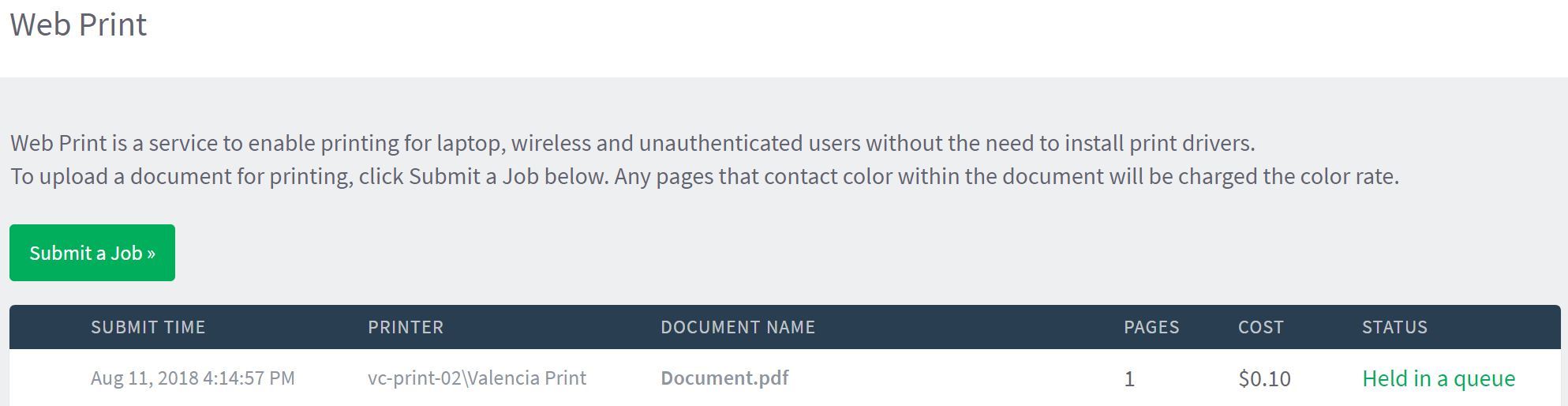

Web Print BYOD (Bring Your Own Device)
Print using your own Windows, MAC or Chromebook desktop or laptop. You can print using your laptop while on campus or even another computer from home or anywhere!
Supported formats: PDF, Image Files (such as .jpg, .png, .gif, etc.), Microsoft Office Suite (Word, Excel, PowerPoint, Publisher).
- From any Internet connected computer, open a new web browser and navigate to Student Printing Portal (Opens in new window).
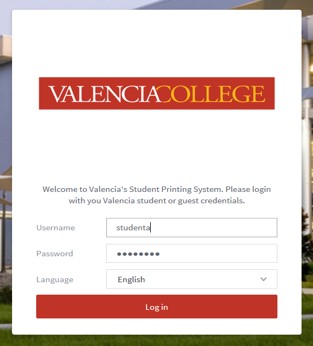
- Enter your Valencia username and password and click (guests use your guest account credentials).
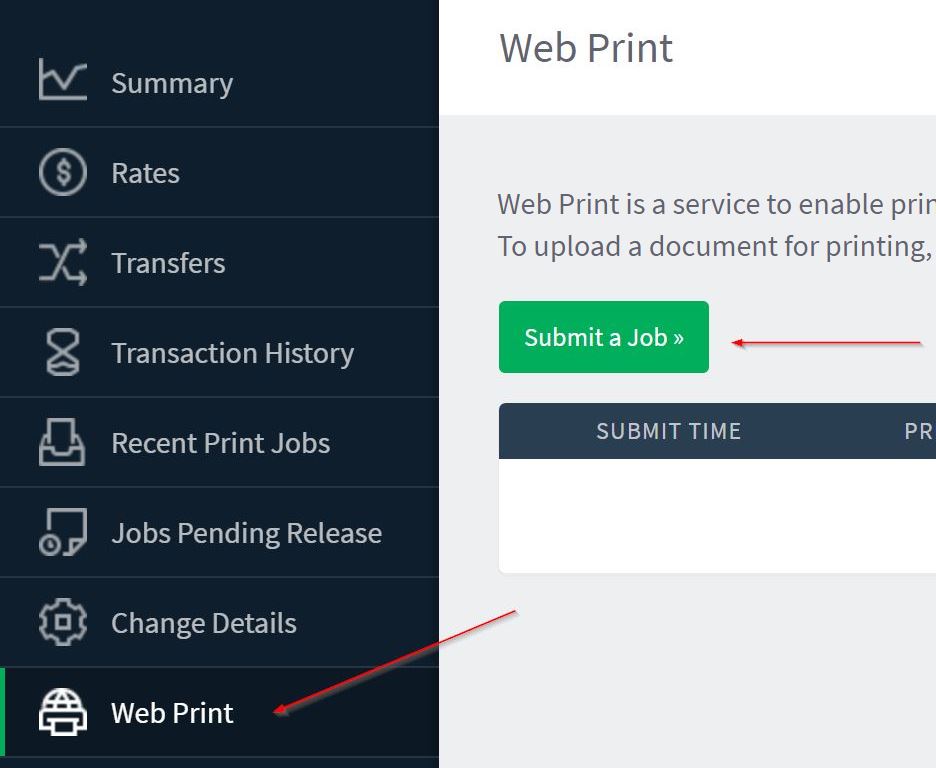
- Choose Web Print.
- Select Submit a Job.
- Change the number of copies if needed and click on Upload Documents.
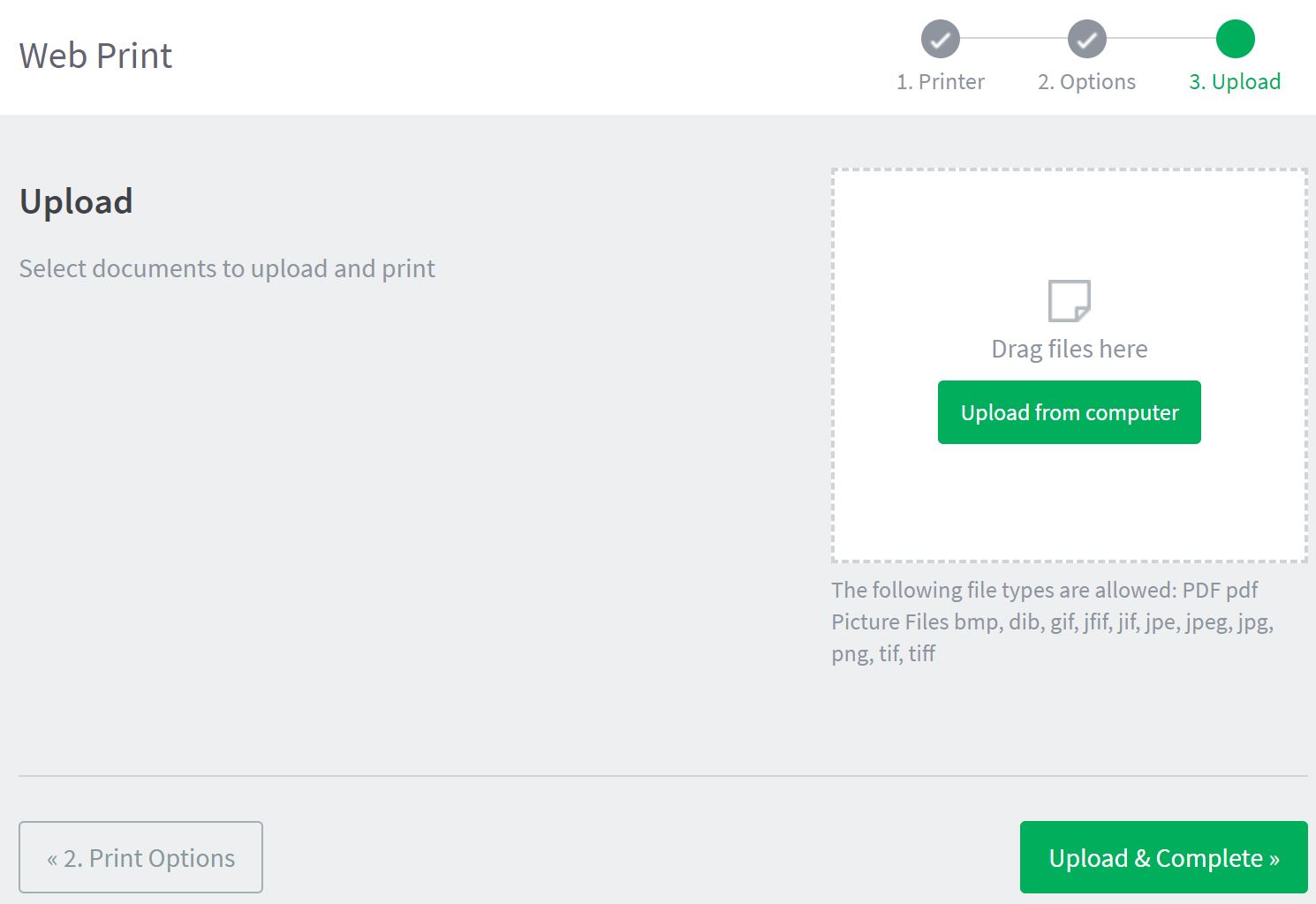
- Click on Upload from computer to browse your device or drag and drop files to that area. Acceptable file formats are pdf, docx/doc, xlsx/xls, pptx/ppt.
- Once you have uploaded the desired files, click on Upload & Complete.
- The system will show the status of processing your print job. Depending on the size of the document(s) uploaded, it could take a few minutes to process.
- Once processed the system will show the Status as "Held in a queue". Simply go to any small or large Print Station to release your document using the Print Release function.